
Why is A+ Content missing when my brand is registered?
Short answer
Brand Registry enrolment does not automatically publish A+ Content on every ASIN. Check selling-plan eligibility, account permissions, brand association, marketplace, assigned ASINs and the content’s submission status. Distinguish missing access from approved content that is not displayed. Basic and Premium A+ have different eligibility conditions, and publication or conversion gains cannot be guaranteed.
Facts checked 3 min read
Also asked as
- Why is the A+ Content option not showing in Seller Central?
- Why is approved A+ Content not visible on my ASIN?
- Does Brand Registry automatically publish A+ Content?
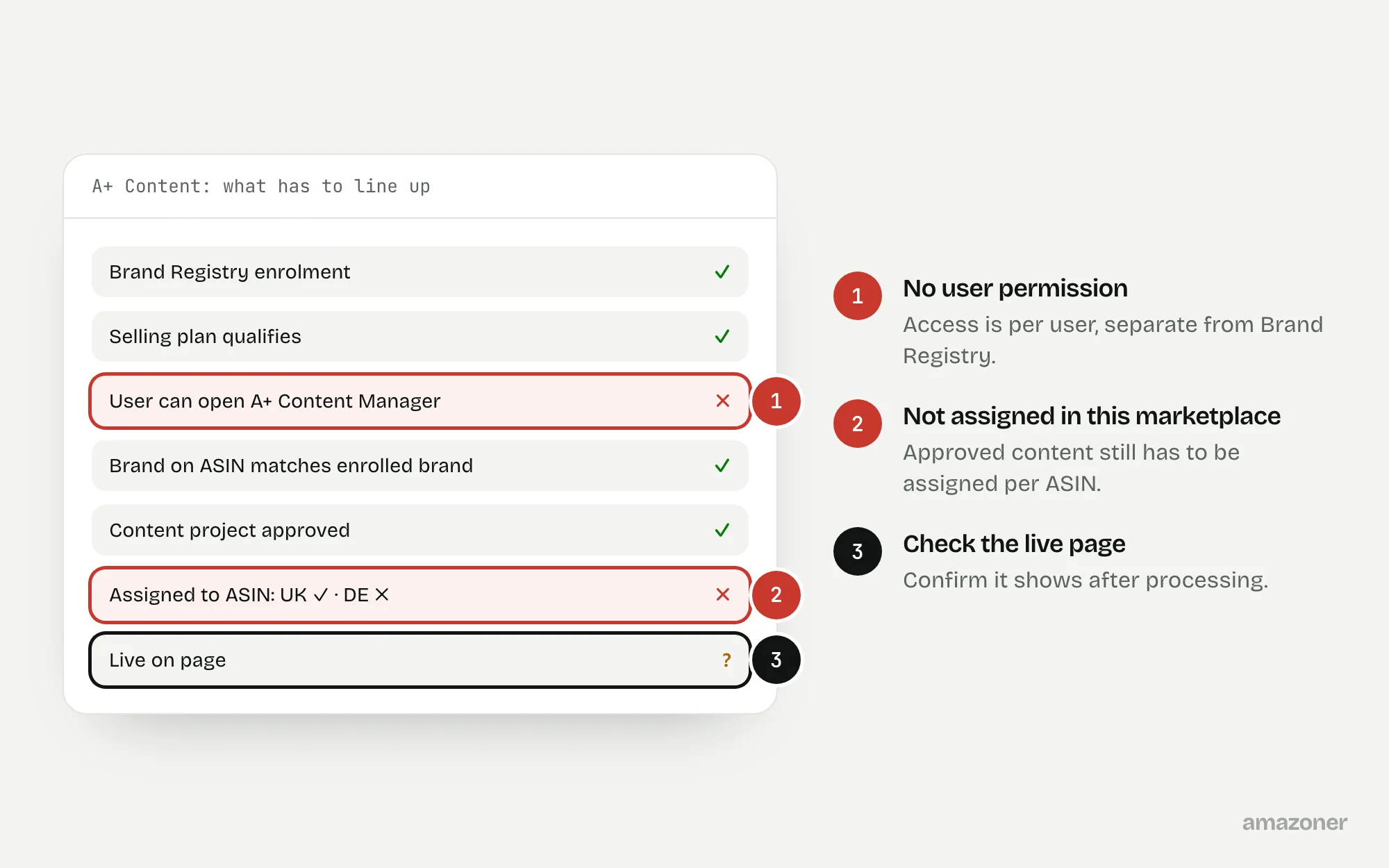
A typical case
An office-accessory brand
The brand assumes enrolment will switch on enhanced content across its catalogue. A colleague can’t open the content tool, and a prepared content project isn’t assigned to the intended marketplace ASINs. It’s two problems, access and publication, rather than one catalogue fault.
Don’t confuse these
- Brand Registry enrolment
- Recognition of your brand, which makes A+ available to eligible sellers.
- A+ access
- Whether a particular user and selling account can open and use the content tool.
- A+ publication
- Whether approved content is assigned to an ASIN in that marketplace and showing on the page.
Brand Registry, selling-account permissions and content publication are separate checks, and requirements can differ by content type.
Current public A+ guidance contains inconsistent Premium eligibility thresholds, so verify the account’s own eligibility message rather than relying on a fixed threshold or activation time.
Why it happens
A+ depends on several things lining up: a selling plan that qualifies, a user with permission to the tool, ASINs recorded under the enrolled brand, and content that’s been approved and assigned to those ASINs in the right marketplace.
If any one is missing, the content won’t show, even though the brand is registered.
How to diagnose it
- 1
Confirm access
Check the selling plan and the authorised user’s permission to A+ Content Manager.
- 2
Check the brand on each ASIN
Confirm the brand recorded on each intended ASIN matches the enrolled brand exactly.
- 3
Inspect the content project
Check the submission status, any rejection feedback, the assigned ASINs and the marketplace.
- 4
Correct brand associations
Fix inaccurate brand associations through the appropriate support route, with evidence.
- 5
Submit for eligible products only
Submit compliant content only for ASINs that qualify.
- 6
Recheck the live page
After processing, check the content is showing on each assigned ASIN.
What we recommend
Confirm the relevant selling plan and authorised user’s access; reconcile the brand recorded on each intended ASIN with the enrolled brand; inspect the content project, assigned ASINs, marketplace and review feedback.
Correct inaccurate associations through the appropriate evidence-led support route and submit compliant content only for eligible products. Recheck the live page after processing, and evaluate conversion with a suitable test where eligible rather than assuming A+ alone causes an uplift.
Common mistakes
- Assuming Brand Registry publishes A+ automatically.
- Assigning content in one marketplace and expecting it in another.
- Including claims that get the content rejected.
- Quoting a fixed Premium A+ threshold from an old guide.
Prevention checklist
- Keep a list of which users need A+ access.
- Check the brand field on new ASINs before creating content.
- Track each content project’s status and assigned ASINs per marketplace.
- Keep claims in A+ consistent with the rest of the listing.
- Check eligibility messages in the account, not third-party summaries.
What an audit gives you
Access requirements and ASIN assignments documented per marketplace, with a compliant content submission brief for the eligible products.
Related questions
Does Brand Registry automatically add A+ Content?
No. It makes A+ available to eligible sellers, but content still has to be created, approved and assigned to each ASIN.
Why can’t my colleague see A+ Content Manager?
User permissions in Seller Central control access to the tool. Check their permissions and the account’s selling plan.
Will A+ Content increase my sales?
It can help shoppers decide, but no uplift is guaranteed. Measure it with a proper test where one is available.
Sources
The seller questions and Amazon or regulator guidance this guide is based on, checked 7 November 2026.
- A+ content option not showing but we are brand registered (Amazon seller forums)
- Make your products stand out with A+ Content (Amazon UK)
- Amazon Brand Registry FAQ (Amazon UK)
General guidance, not legal, tax or account-specific advice. Amazon’s rules, menus and programmes change; check the current version in your own account before acting.