
Why is my Amazon main image rejected or not showing?
Short answer
An Amazon image may fail technical or content requirements, or an accepted upload may not become the displayed image. Check submission feedback and the live image separately. Review the current product-type style rules, background, added text and accurate product representation. Uploading a replacement does not guarantee display or an immediate end to suppression.
Facts checked 3 min read
Also asked as
- Why does Amazon say my image background is not white?
- Why is my new product image not appearing?
- Can main-image problems cause search suppression?
A typical case
A kitchen-organisation brand
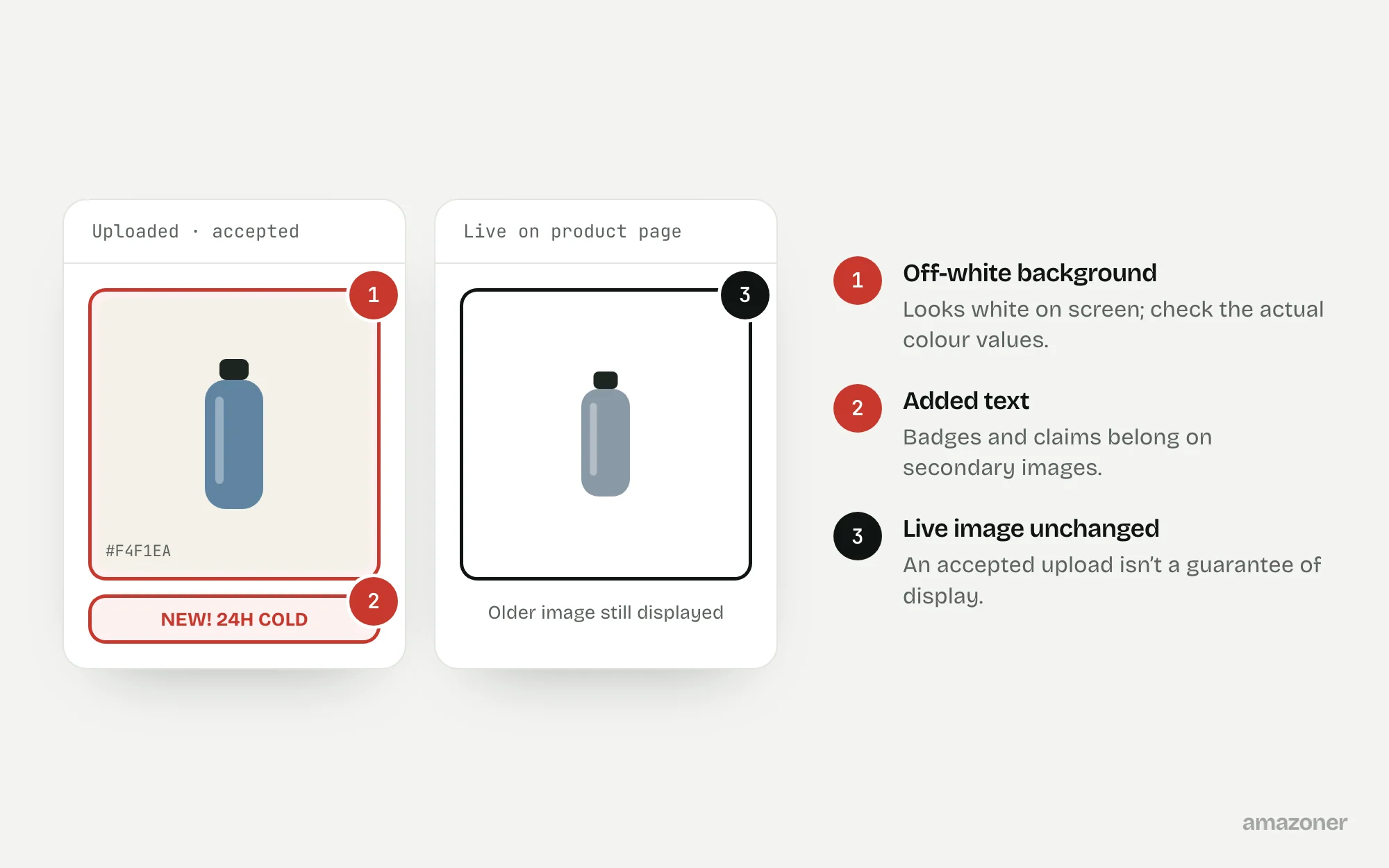
A replacement main image has been uploaded, but the product page still shows the older one. The original has an off-white background and added promotional wording. Two different things need separating: a compliance failure, and Amazon’s choice between competing image contributions to the same catalogue page.
Don’t confuse these
- Rejected upload
- Amazon refused the file because it failed a technical or content requirement.
- Accepted but not displayed
- The upload went through, but Amazon is still showing a different image contributed to the same page.
- Suppressed for the image
- The listing is hidden from search because the displayed main image breaks the rules.
Main-image and secondary-image rules aren’t identical, and category exceptions can apply.
Amazon states that images may be rejected, removed or altered, and that uploading an image doesn’t guarantee it will be displayed. An accepted upload isn’t proof the visible image is compliant or has changed.
Why it happens
Main images generally need a pure white background, no added text, logos or graphics, and an accurate photo of the product being sold, with exceptions for some categories. Backgrounds that look white on screen are often slightly off-white, and a badge or claim added for marketing breaks the rule.
Several sellers and sources can contribute images to one ASIN, and Amazon chooses which to display. That’s why a successful upload can leave the old image on the page.
How to diagnose it
- 1
Read the exact message
Open the submission feedback or suppression reason and note which requirement it names.
- 2
Check the current guidance
Read the image requirements for the product type and marketplace, including technical size rules and any category exceptions.
- 3
Inspect the asset itself
Check the background values, any added text or graphics, and whether the photo shows exactly the product and pack being sold.
- 4
Prepare a compliant replacement
Create an accurate main image without prohibited additions and with the required background.
- 5
Submit and keep the evidence
Upload through the appropriate image tool and keep the processing confirmation and date.
- 6
Compare with the live page
After processing, check which image is actually displayed. Escalate persistent mismatches with the image and submission details.
What we recommend
Read the specific submission or suppression message; check the current product-type image guidance and technical requirements; prepare an accurate main-image asset without prohibited additions and with the required background.
Submit through the appropriate image tool, keep the processing evidence and compare the actual displayed image after processing. Escalate persistent selection or compliance discrepancies with the relevant image and submission details.
Common mistakes
- Using a background that looks white but isn’t pure white.
- Adding badges, claims or logos to the main image.
- Assuming an accepted upload means the new image is live.
- Uploading again and again without reading the rejection message.
Prevention checklist
- Check main images against the current product-type rules before upload.
- Verify the background colour values, not just how it looks on screen.
- Keep claims and infographics for secondary images.
- Save processing confirmations with dates.
- Check the live page after every image change.
What an audit gives you
A review of the original and live images against the current rules, a revised main-image brief, and a submission evidence pack for escalation if the wrong image keeps displaying.
Related questions
Why does Amazon say my background isn’t white?
Backgrounds that look white are often slightly grey or cream. Main images generally need pure white, so check the actual colour values in an image editor.
Why isn’t my new image showing?
Amazon chooses between images contributed to the same page, and an accepted upload doesn’t guarantee display. Check what’s live after processing and escalate with your submission details if needed.
Can a main image cause search suppression?
Yes. A missing or non-compliant main image can be a reason for suppression. Fixing the image doesn’t guarantee an immediate end to it, so recheck after processing.
Sources
The seller questions and Amazon or regulator guidance this guide is based on, checked 7 November 2026.
- Search Suppressed - Background isn’t white enough (Amazon seller forums)
- Listings Lounge: Product Image Requirements (Amazon seller forums)
General guidance, not legal, tax or account-specific advice. Amazon’s rules, menus and programmes change; check the current version in your own account before acting.